Enter a function using the Insert function pane
To enter a function using the Insert function pane, follow these steps:
-
Select the cell in which you want to enter a function. If a range is selected, the function will be entered into the active cell.
-
Expand the Insert function pane in one of the following ways:
- On the Formula bar, click
 .
. - On the Insert tab, click
 Function.
 - On the Sidebar, click Insert function.
- Press
Shift+F3.
- On the Formula bar, click
-
Find the required function in one of the following ways:
- Enter part of the function name or the entire name in the Find box. Below is a list of functions that meet the search conditions.
- Select the group that the function belongs to. For example, the SUM function is included in the Math & Trig group.
- Find the function in one of the following groups: All: Contains all the functions supported by MySpreadsheet. Recent: Contains the last 10 functions entered by the user. Most popular: Contains a fixed list of 10 frequently used functions.
-
Select the required function.
-
If necessary, check out the function summary at the bottom of the Insert function pane.
-
To insert a function into a cell, do one of the following:
- Click Insert.
- Select the function by double-clicking.
- Press
Enter.

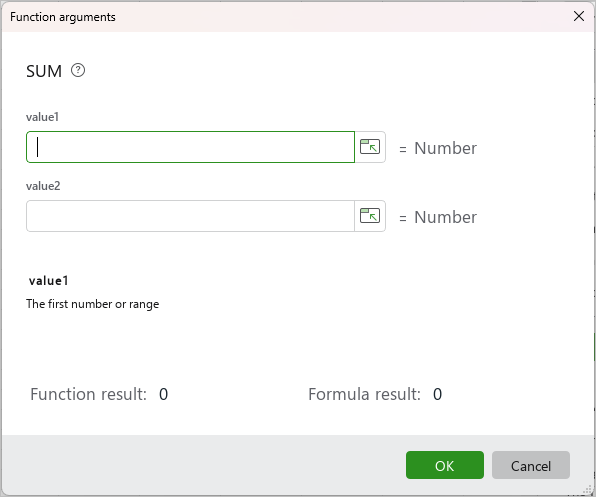
- In the Function arguments window that opens, enter the arguments directly into the value fields, or by clicking
 Select values, select a range of values with the mouse, then click Select values again or press
 Enterto confirm the entry. When entering a function, you can select an entire column, a range of columns, an entire row, or a range of rows as an argument by selecting their titles. When you select a row, column, or range of cells with the mouse as an argument for a function, a tooltip appears with information about the size of the selected area. The tooltip is displayed as long as the left mouse button remains held down.
If in Windows, in the Customize format window, "." is selected in the Decimal symbol field, then in MySpreadsheet, use "," instead of ";" as the separator of values in functions.
-
There are several ways to complete the function entry:
- To confirm the input, click OK in the Function arguments window, the
 button in the Formula bar, or press
 Enter. - To cancel function entry, click Cancel in the Function arguments window, click the
 button in the Formula bar, or press
 Esc.
- To confirm the input, click OK in the Function arguments window, the
-
To close the Insert function pane, do one of the following:
- On the Formula bar, click .
- On the Insert tab, click ** Function**.
- On the Sidebar, click Insert function.
- Click
 in the upper part of the Insert function pane.
 - Press
Shift+F3.
- On the Formula bar, click