Document recovery
If the work with documents was finished incorrectly, then when you re-enter the application, the Autorecovery window opens. Click Open in this window.
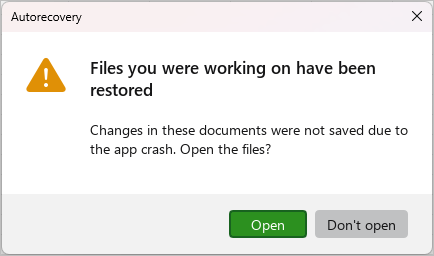
Backed up copies of documents will open in new application windows.
To save copies, follow the steps below for each copy:
- In the notification bar, click Save as.

- In the Save as window:
- If you want to save the copy as a separate file, select the folder where you want to save it, specify the file type and name, and click Save.
- If you want to replace the original file with a copy, select the file and click Save.
If you want to delete a copy, click Delete in the notification bar.