Insert a link to a place in the document
To help you navigate through particularly long documents, you can also create links to a specific place in the document, for example, to a sheet, a cell, a range of cells, or a named range.
A link to a place in a document may contain the following elements:
- Sheet name. For example, Sheet 2 .
- Name of the sheet with the cell or range address. For example, 'Sheet 2'!A3:A6 .
- Name of the named range. For example, Range 1 .
- Any other text. For example, see here .
To create a link to a place in the document, follow the steps below:
-
Specify the place to insert the link in one of the following ways:
- To create a link with the sheet name and cell address / range, select an empty cell or, if the cell is not empty, place the cursor in the desired cell position.
- To add a word or text with a link to an empty cell, select the cell or place the cursor in it.
- To format all text contained in a cell as a link, select the cell.
- To format a single word in the cell text as a link, place the cursor in the word or select the entire word.
- To format a part of the text in a cell as a link, select the entire text part.
-
Insert the link in one of the following ways:
- On the Insert tab, click
 Link.
Link. - Right-click to open the context menu and run the Insert link command.
- Press
Ctrl+K.
- On the Insert tab, click
-
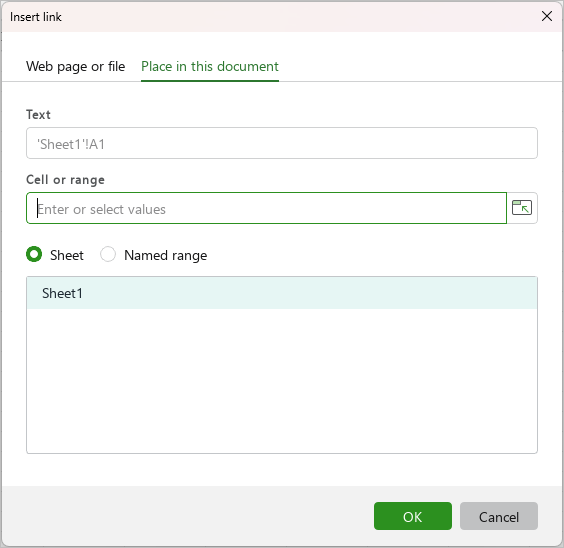
In the Insert link window, select the Place in this document tab.
-
To insert a link to a sheet, make sure the Sheet radio button is selected and choose the desired sheet from the list.
-
To insert a link to a cell or range in the Cell or Range box, enter the cell/range address manually. Or click
 to select the required cells in the document itself, then click again to insert the address into the box.
 -
To insert a named range reference, click the Named range radio button and select the desired range from the list below.
-
In the Text box:
- If the box displays the sheet name and the selected range and you want to create a link with the sheet name, leave the content of the box unchanged.
- If the box displays the sheet name and the selected range but you want to specify the link text, enter the required text manually.
- If the box is filled with text from the selected cell or text selected in the cell, or a word on which the cursor is positioned, edit this text if necessary or leave it unchanged.
-
Click OK.
When you save an .ods document in .xlsx format in a cell that contains multiple links at the same time, only the first link remains functional.