Share a file
To configure shared access to a file, open it in the cloud.
Then open the Sharing settings window in one of the following ways:
- Click the
 button and run the Share command from the main menu.
 - On the Protection tab, click
 Sharing settings.
In the window that appears, specify the users you want to share the file with in one of the following ways:
- Enter the name or email address of each user manually.
- Click
 Select contacts and select the contacts of the required users in the address book.

Specify the access level for the selected users to the right of the address book:
- View: This permission allows users to view the document and comments on it, as well as download the document.
- Comment: Not supported in this version.
- Edit: This permission grants the View permission and also allows users to edit the document.
- Management: This permission includes the View and Edit permissions for a document, and also allows users to manage document access permissions: grant permissions to new users and change the permissions of existing users.
- Access denied: Block users from accessing the document.
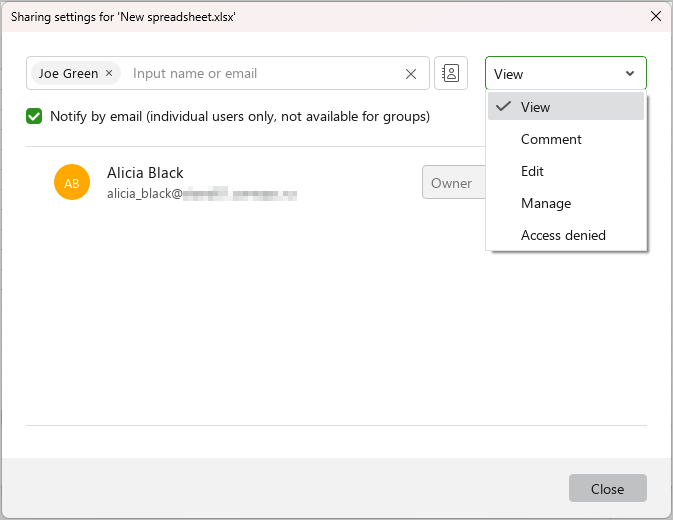
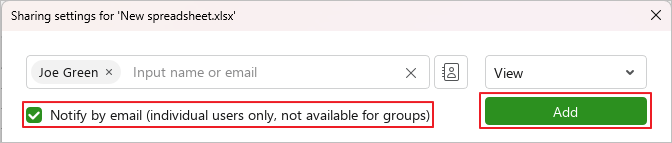
If you want to send an email notification to all users about changes to file access permissions, select the Notify by email checkbox.
The Notify by email command is not available in the following cases:
- The user's email address is invalid.
- File sharing settings have been changed.
- Access to the file is denied.
- Access rights are provided to a group but not to individual users.
Click Add.
The selected contacts will be added to the list of users who have access to the file.
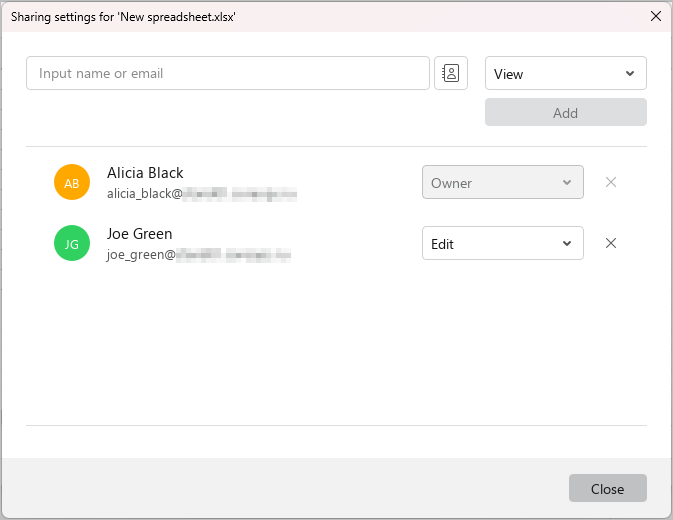
Click Close to close the Sharing settings window.