Active cell of the range
Active cell is a cell in the selected range that the user is currently working with.
You can use the following commands for the active cell:
- Enter data.
- Enter functions.
- Insert special characters.
- Insert (create) shapes, images, and text boxes.
- Copy cell formatting.
- Paste objects from the clipboard: shapes, images, text boxes, charts.
The formatting properties and number format are displayed for the active cell on the Toolbar.
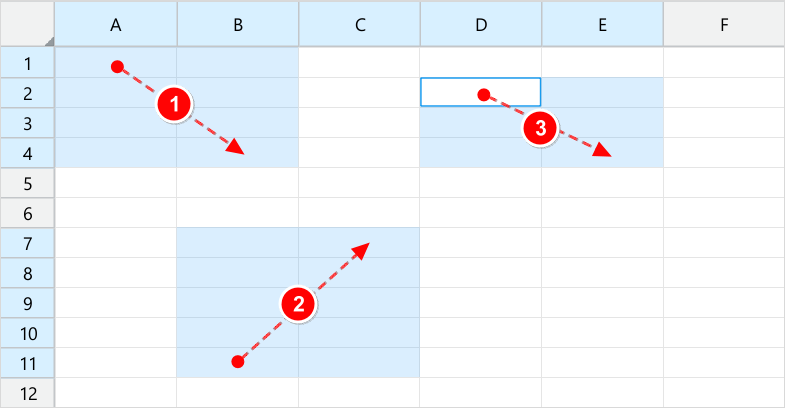
The visually active cell does not have a translucent color overlay like the other cells in the range, and when there is multiple selection, it is additionally highlighted with a blue frame.
When you select a range, the cell where you started the selection is designated as the active cell.
Examples of active cell placement depending on the direction of selection:
- The active cell is A1:

- The active cell is C1:

- The active cell is A3:
- The active cell is C3:
When you use multiple selection, the cell where you started the last range selection is designated as active. In the example below, the range D2:E4 was selected last, and the active cell is D2.
Select the active cell
If you need to select another cell within the range as active without deselecting the current selection, do the following:
- Move the pointer to the right or left by pressing
TaborShift+Tab. The pointer will move along the row. - Move the pointer down or up by pressing
EnterorShift+Enter. The pointer will move along the column.
With a multiple selection, the pointer will move between the ranges in the order they were selected. In this case, overlapping ranges do not interfere with each other.