Run a macro
You can run a macro using the Macro editor or the Macros pane. In addition, you can add frequently used macros to the Favorites.
To run a macro using the Macro editor, follow the steps below:
- Open the Macro editor in one of the following ways:
- On the Macros tab, click
 Macro editor.
 - On the Sidebar, click
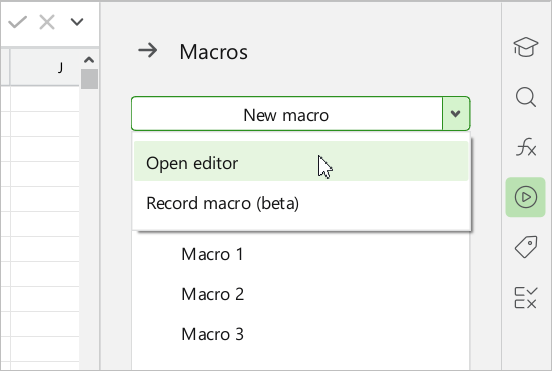
 Macros. In the Macros pane, click the
  button to the right of the New macro button. In the drop-down list, select Open editor.
- On the Macros tab, click
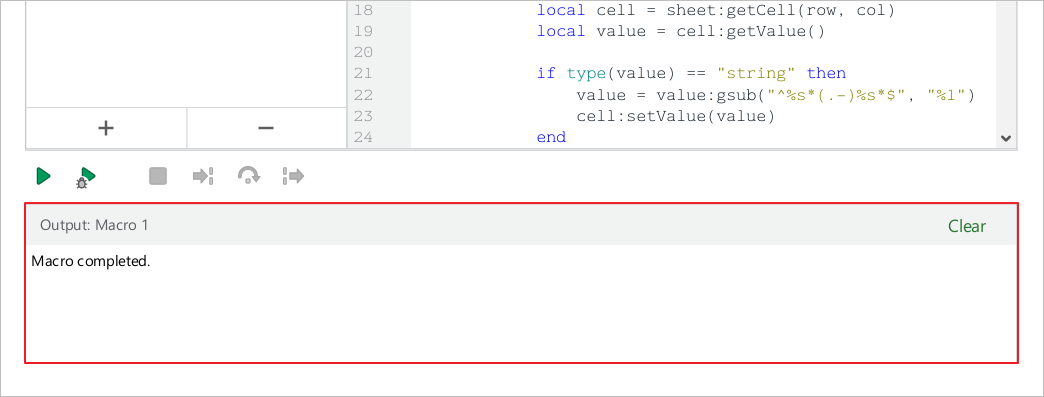
- In the Macro editor window, select the desired macro from the list and click
 Run macro button.

Information about the macro run result will be displayed in the Output area.
To run a macro using the Macros pane, follow the steps below:
- On the Sidebar, click Macros.
- Run a macro in one of the following ways:
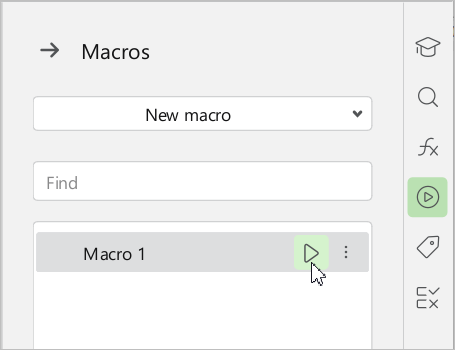
- In the Macros pane, hover the mouse cursor over the name of the macro and click
 Run.
Run.
- In the Macros pane, hover the mouse cursor over the name of the macro and click
•Double-click the macro name in the list.