Create a macro
You can create a macro in one of the following ways:
- Record a sequence of actions that a macro should consist of.
- Enter the macro code manually.
- Convert the VBA macro code into a new macro with similar code in Lua.
To record a macro, do the following:
- Start recording in one of the following ways:
- On the Macros tab, click
 ** Record macro (beta)**.
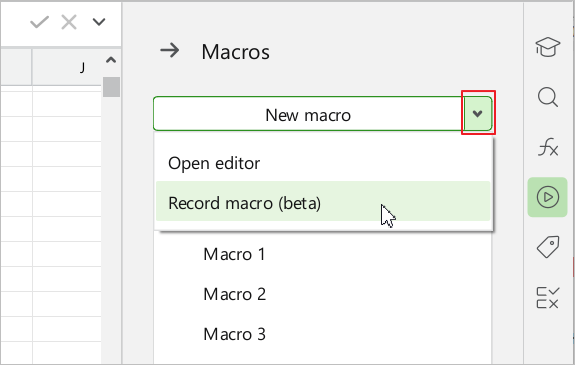
 - If the document contains at least one macro in the Lua language, on the Sidebar, click
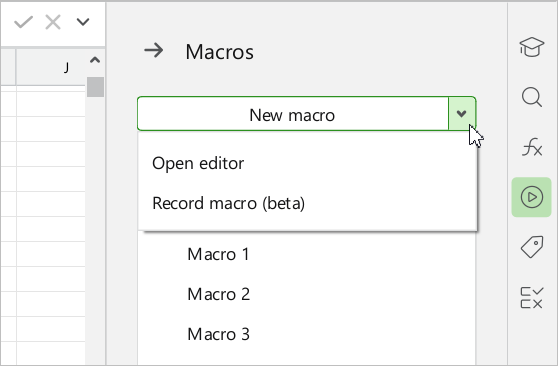
 Macros. In the Macros pane, click the
  button to the right of the New macro button. In the drop-down list, select Record macro (beta).
- On the Macros tab, click
- Perform a sequence of actions that a macro should consist of.
In the current version of the application, not all user actions are available for recording. When you perform an action that cannot be recorded, the message “Action cannot be recorded” pops up on the screen.
- Complete the recording in one of the following ways:
- On the Macros tab, click
 Stop recording macro.
 - If the document contains at least one macro in the Lua language, on the Sidebar, click Macros. In the Macros pane, click the button to the right of the New macro button. In the drop-down list, select Stop recording macro.
- On the Macros tab, click
•On the Status bar, click Stop recording.

- In the opened dialog box, specify the macro name and click OK.
If the macros has been successfully saved, the following pop-up message will be displayed on the screen: “"Macro_name" macro saved”.
To enter the code of a macro manually:
- Create a new macro using one of the following methods:
- On the Macros tab, click
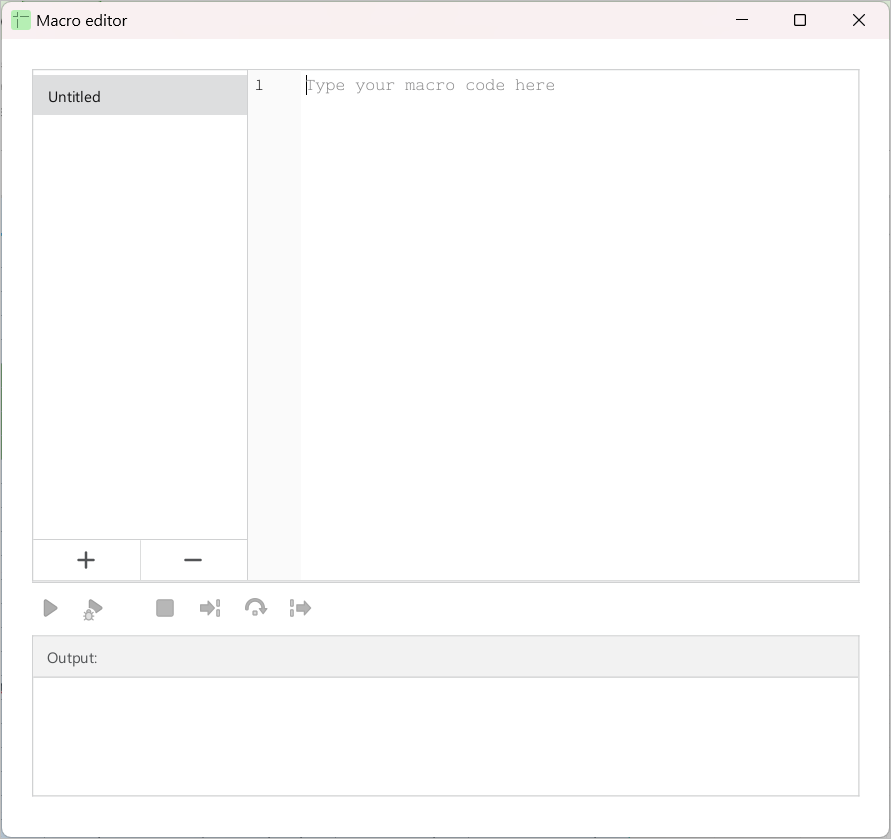
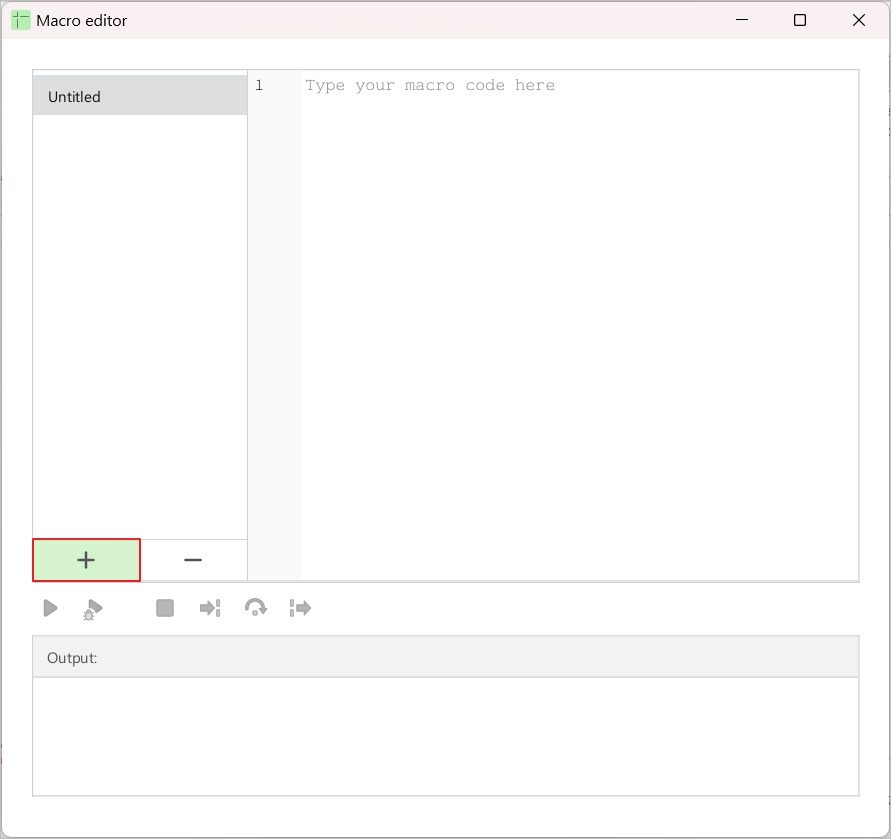
 Macro editor. If there were no macros in the document, a new macro named “Untitled” will be automatically created in the editor window. If the document already contains macros, click the
  button in the editor window.
- On the Macros tab, click
•If the document contains at least one macro in the Lua language, on the Sidebar, click Macros. In the Macros pane, click New macro.
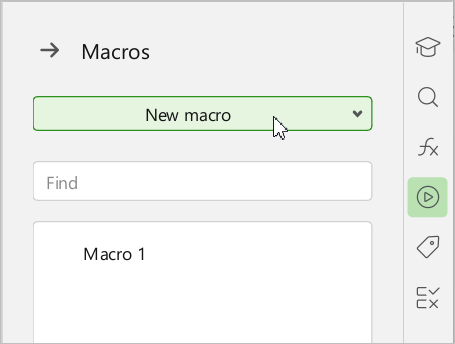
- Enter a name for the macro or leave the default name. To save the name, press
Enteror click anywhere in the Macro editor.
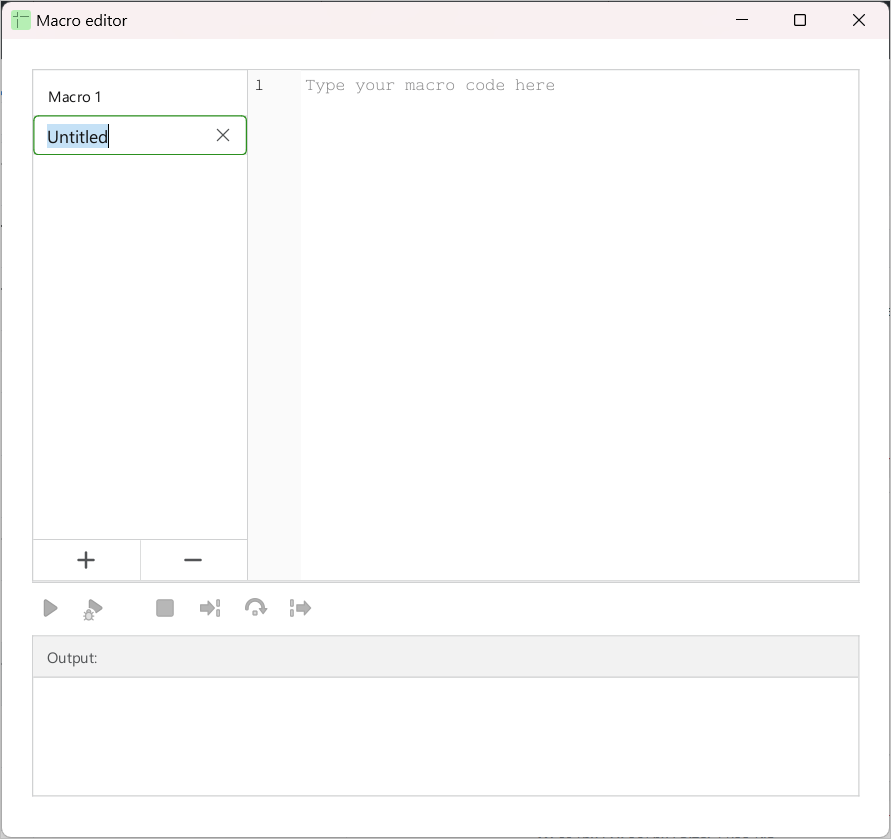
- Enter the macro code in the right section of the window containing the text “Type your macro code here”.
The new macro will be saved automatically.
When you add the first macro in Lua to the document, the Macros button appears on the Sidebar. This button is displayed as long as there is at least one macro written in Lua in the document.
Click Macros to open the Macros pane.
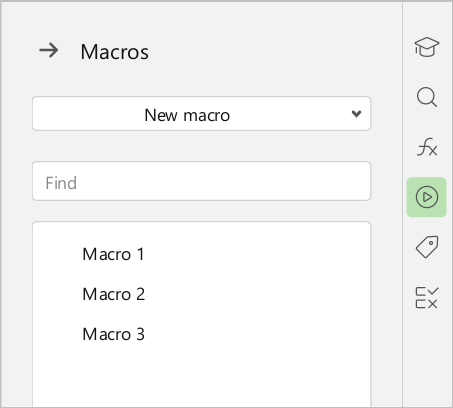
To close the Macros pane, click the  button at the top of the pane, or click Macros button on the Sidebar again.