Group or ungroup objects
You can group objects on a slide and manage them as a whole. Unlike multiple selection, the grouping of objects is retained until you use the Ungroup command.
On the slide, you can group:
- Individual objects
- Individual objects and groups of objects
- Several groups of objects
tip
You cannot group placeholders and tables.
To group objects and/or groups, follow the steps below:
- Select the objects and/or groups.
- Run the Group command in one of the following ways:
- On the Home tab, in the Arrange group, click
 Group.
 - On the Home tab, in the Arrange group, click the arrow to the right of the Group button and run the Group command.
- On the Home tab, in the Arrange group, click
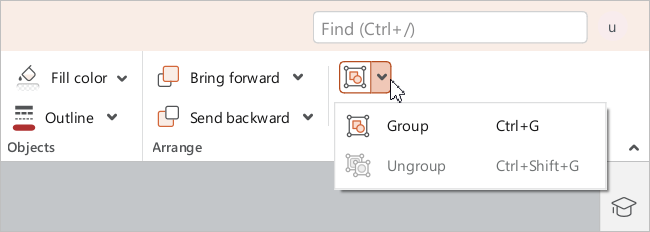
•Right-click any of the selected objects and run the Group command from the context menu.
•Press Ctrl+G.
Grouped objects/groups of objects will have a common frame.
To ungroup one or more groups of objects, follow the steps below:
- Select the required groups.
- Run the Ungroup command in one of the following ways:
- On the Home tab, in the Arrange group, click the arrow to the right of the Ungroup button and run the Ungroup command.
- Right-click the selected objects to open the context menu and run the Ungroup command.
- Press
Ctrl+Shift+G.
- On the Home tab, in the Arrange group, click the arrow to the right of the
The frame that unites the objects will be deleted.