Special characters window
To open the Special characters window, follow these steps:
- Place the cursor at the location on the slide where you want to insert the special character.
- Do one of the following:
- On the Insert tab, click
 Special characters.
 - On the Insert tab, click the arrow to the right of the ** Special characters** button. In the special characters quick insert pane, select More characters.
- On the Insert tab, click

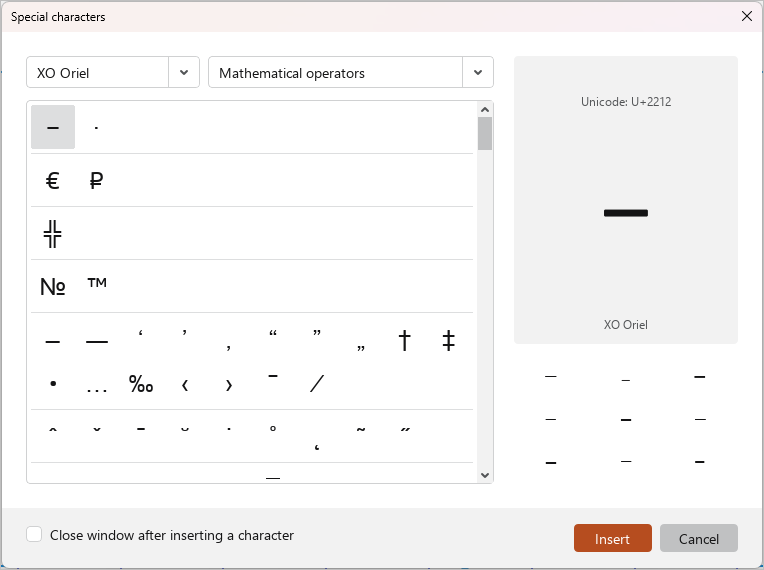
The Special characters window contains the following tools:
- Drop-down list for selecting the font of the special character.
- Drop-down list for selecting the group and category of the character. If the font does not support the characters of a group or category, it is not displayed in the list.
- Characters. By default, the first character of the selected category is highlighted. Categories are separated from each other by a line.
- The name of the highlighted character.
- The code of the selected character in the Unicode system.
- The typeface of the selected character.
- The font of the selected character.
- Other typefaces of the selected character.
To insert a character from the Special characters window, follow these steps:
- Select the font of the special character. The selection is similar to the font selection in the main application window.
- Select a character category. You can select it in the same way as selecting a special character font.
- Insert the character in one of the following ways:
- Select the character by double-clicking.
- Select the character with a single click and click Insert.
- Select a character with one mouse click and press
EnterorSpaceon the keyboard.
If you want the window to close automatically, select the Close window after inserting a character checkbox.
To close the Special characters window manually, click Cancel or the  button in the window header.