Insert a line
To add a line to a slide, follow the steps below:
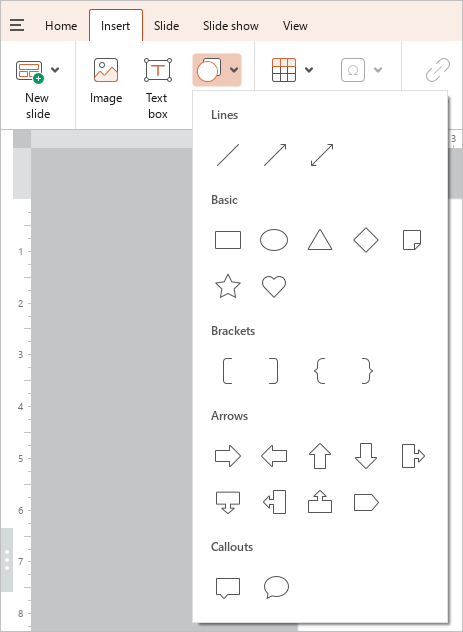
- On the Insert tab, click
 Shape.
 - In the sub-menu that opens, select the type of line to insert: line, arrow, double-sided arrow. The cursor will look like a crosshair
 .
.
-
If needed, select the arrowhead type.
-
Add a line in one of the following ways:
- Click the left mouse button on the place where the line start point should be located. A line with a length of 4.24 cm and an angle of 45° will be added to the slide.
- Hold down the left mouse button and draw a line in the desired location of the slide. To finish drawing, release the left mouse button.
-
If needed, edit the length and the angle of the line.