Insert a shape
To add a shape to a slide, follow these steps:
- Select a slide on the Slide bar.
- On the Insert tab, click
 Shape.
- In the sub-menu that opens, select the desired shape:
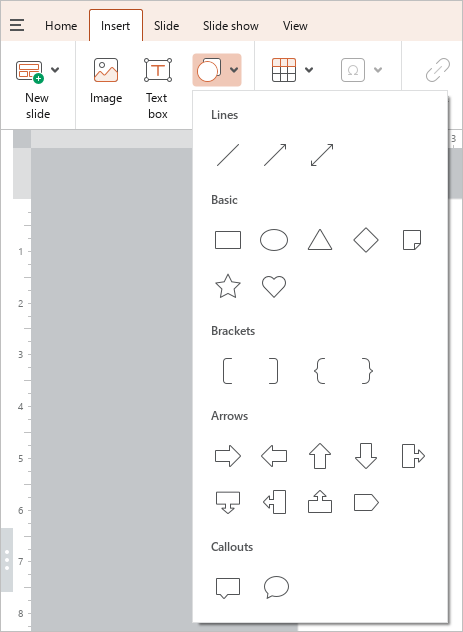
By default, the shape is inserted in the center of the slide. The fill and outline of the shape are automatically selected to match the theme of the current slide. After inserting the shape, you can move it to the desired location on the slide and edit its parameters.
If necessary, you can add text into the shape.