Recovered files pane
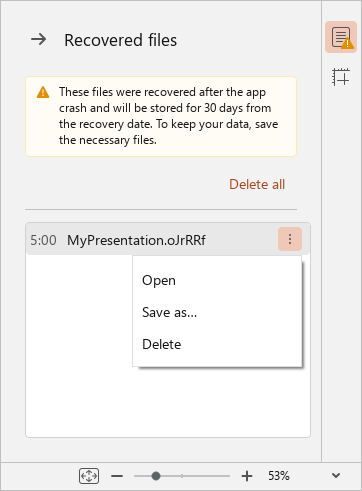
If any backed up documents were not saved or deleted as described above, open the Recovered files pane.
To do this, proceed with one of the following:
- Click the
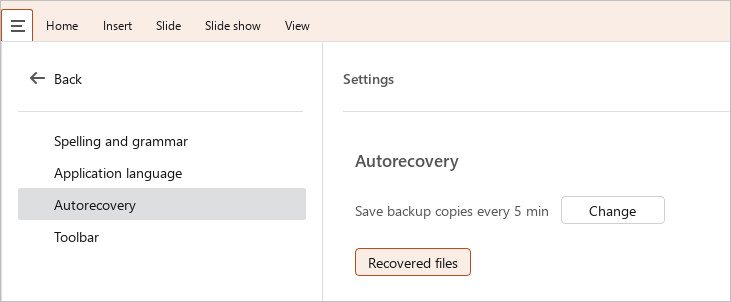
 button and run the Settings command from the main menu. In the Settings pane, in the Autorecovery block, click Recovered files.
- On the Sidebar, click
 Recovered files.
- When working in macOS, run File > Autorecovery > Recovered files command from the command menu.
To open, save, or delete a document backup copy, follow the steps below:
- Hover the cursor over the name of the copy and click the
 button.
 - In the drop-down list, select the desired command.
You can also open a document backup copy by double-clicking its name in the list.
If you want to delete all copies of the documents, click Delete all.