Reply
-
Select the desired email from the List of emails. The email opens in the Reading pane, or open the email in a new tab.
-
On the message Toolbar, click
 REPLY. A New message window opens in which:
- The to field will be automatically filled in with the email address of the sender of the original message.
- The Subject field will contain the subject of the original email with the prefix Re:.
- The body of the email will contain information about the original email (date and time, from whom) and the text of the original email (it will be formatted as a quote). With the next response in a discussion of four or more emails, the thread of original emails can be expanded and collapsed with the Show all messages button.
-
Enter the response text in the New message window. Format the response text as you would when creating a new email.
-
If needed, edit the address fields of the email, attach files, etc.
-
Click the Send button.
With the Automatically save new contacts after sending them messages setting enabled when sending emails, after sending a response, the recipient of the response will be automatically added to the Personal address book if their address is not in the list of your contacts.
If the New message window is minimized, the Reply operation (including Reply to all) is not available. When you try to reply to another email, you will receive a notification about the need to complete working with the previous email:
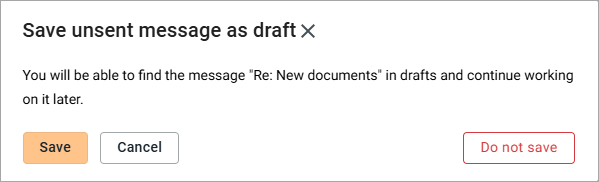
To continue working, click one of the buttons in the notification window:
- Save: The message in the minimized window will be saved to the Drafts folder, a window for creating a new email will open.
- Cancel: The operation of creating a response to the email will be interrupted, the notification window is closed.
- Do not save: The minimized message creation window will be closed without saving the email to the Drafts. A window for creating a new email in will open.