Customize contact list
To customize the view of the Contact List:
- On the Address Book tab, on the Address Book Pane, select an address book. The contacts of this address book will appear in the Contact List.
- In the Contact List, click the
 button in the upper right corner. The Contact List settings menu will open.
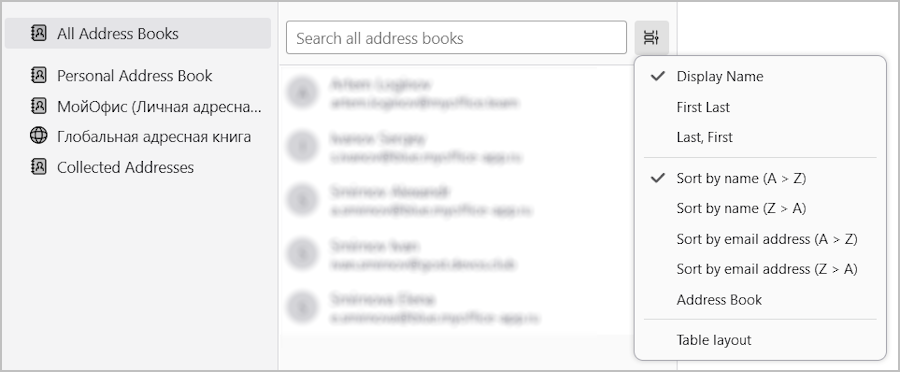
- Change the mode of displaying the full name of contacts in the Collected Addresses address book by selecting the desired option:
- Displayed Name: the default name displayed;
- First Last: <First_Name> <Last_Name>;
- Last, First: <Last_Name>, <First_Name>.
-
Change the sorting mode of contacts in the list by selecting the desired option: Sort by name or Sort by email address.
-
Enable the display of the address book name in the contact rows using the Address Book option.
-
If you want to customize the tabular view of the Contact List, follow the steps:
-
From the
menu, select the Table layout check box. -
From the
 menu, select the columns to be displayed in the table.
The Contact List will be displayed in the selected mode.