Add contacts to the group
You can only add contacts to the group created by you.
tip
When adding a corporate contact to a group, a copy of this contact created in the address book will be added to the Personal group.
To add contacts to a group, do the following:
- Open the address book containing the contacts you want to add to the group.
- Choose one or more contacts in the List of contacts by clicking on their avatars.
- Click
 on the Toolbar of the List of contacts. The Add to another group window will open. In the Users field, the contacts you have selected will be indicated.
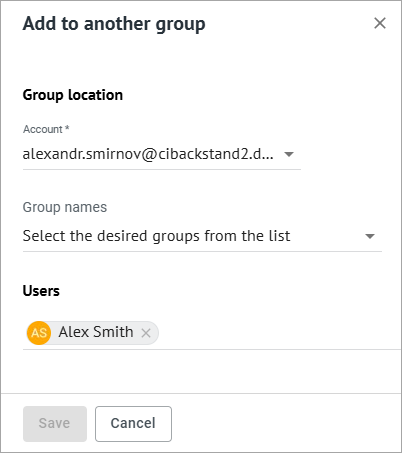
- Without changing the account in the Group location field, select the groups to which you need to add the contact from the Group names list.
- If necessary, add other contacts in the Users field.
- Click Save. A message will appear indicating successful addition of contacts to the specified groups.
To add a contact opened in the Reading pane to the group, do the following:
- On the Toolbar of the Reading pane, click
 More > Add to group. The window Add to another group will open.
 - Perform steps 4–6 from the list above.
To add contacts from one group to another, do the following:
- **1.**Go to the My groups section.
- **2.**In the List of contacts, select the group the contacts of which need to be added to another group. The information about the group will be displayed in the Reading pane.
- **3.**On the Toolbar of the Reading pane click More > Add to group. The window Add to another group will open.
- **4.**Perform steps 4–6 from the list above.