Create a chat on whiteboard
Users of the MyBoard web application can collaborate on the board with colleagues using the built-in MySquadus chat.
Please note that this feature is only available to the users with MySquadus messenger installed.
Only users with view permissions or higher can open the chat.
To open the chat on the whiteboard, do the following:
- Click the
 icon located to the left of the board's list of participants. The Discussion dialog box will open.
- Click Discuss to open the chat for all whiteboard participants.
To send a message in the chat, type your message and press Enter.
Tools for working with chat
 : Open the whiteboard chat in a new tab.
 : Close the discussion window.
 : Open the formatting pane.
 : Insert an emoji.
 : Record an audio message.
For more information about the tools, see the help files for Squadus messenger.
Actions with chat messages
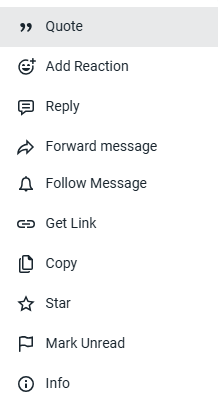
To open the action menu, use one of the following methods:
- Place the cursor on the message and click
 .
- Right-click on the message.
As a result, a menu will open with the following actions: